Thursday, August 6, 2009
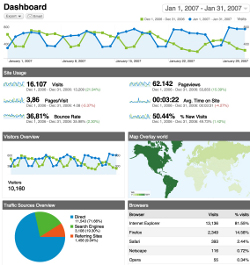 Though EditMe provides basic traffic reports based on your web site's logs, you may be interested in higher level analytics services that use information from visitors browsers rather than from the web server's logs. This article will look at one of the most popular free web analytics packages available: Google Analytics.
Web analytics reporting answers common questions web managers have about traffic to their site:
Google Analytics provides a "prettier" and more marketing-focused set of reports than EditMe's built-in reporting system. It also allows you to provide Google users access to the reports without giving out administrator access to your EditMe site.
Integrating Google Analytics into your EditMe site is easy. Just follow these steps.
It's free. Go to http://www.google.com/analytics/ and click Sign Up. You'll need to sign in with your Google Account or create one if you haven't yet.
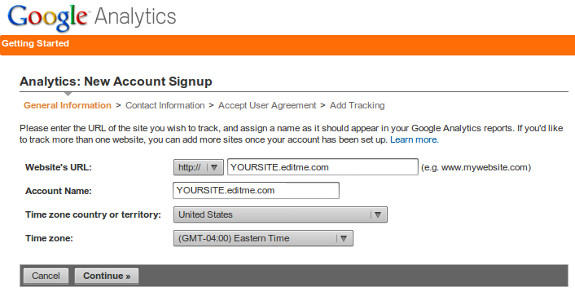
Assuming you haven't used Google Analytics before, you'll be prompted to create your first site. Fill out the form as follows:
Next, you'll be prompted for some contact information.
Finally, you'll have to agree to the terms of service.
Once you've created your account, you'll see a screen like this with tracking code for your site. Copy all of this code to your clipboard.
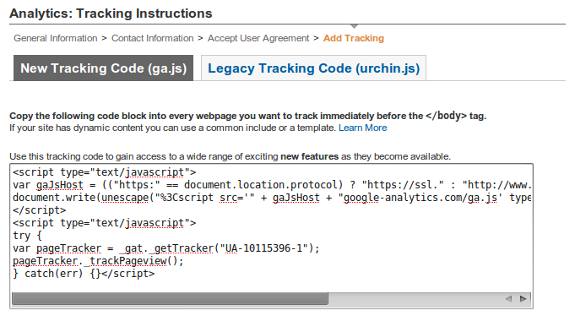
This code is just for the site you're adding. If you plan to add additional sites, you'll need to get the tracking for those sites after adding them to your Google Analytics account.
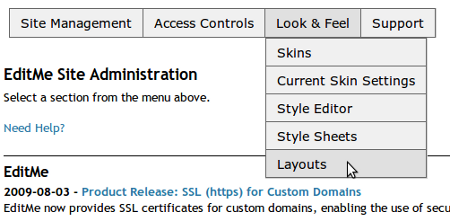
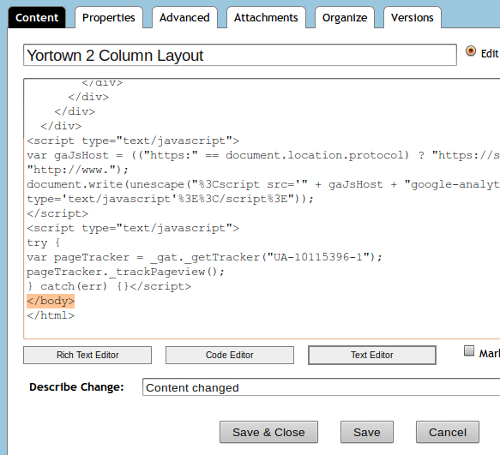
Now that you've got your tracking code, here's how to add it to your EditMe site.